You know the song too well to judge it.
After dozens of listens, it gets harder to hear which frequencies are standing out too much.
AMATERAS JAPAN / AUDIO PLUGINS 10
REAL-TIME SPECTRAL BALANCER
A second pair of ears.
For music you finish yourself.
An EQ curve that keeps moving
with your music, in real time.
You’ve balanced the mix, but the chorus still bites. A different section brings a different buildup. After listening again and again, you’re no longer sure what needs attention. A fixed EQ curve can’t follow every change.
AMATERAS EQ Adaptive is an EQ for the finishing stage. Place it after shaping your mix with tools such as EQ Fix or EQ Pure.
It’s a resonance suppressor that finds and tames harsh ringing, and an EQ that keeps adapting in real time. It gently pulls back excessive frequencies only when they stand out, giving your mix a final polish.
VST3 / AU · Windows / macOS
01 / FOR THE INDEPENDENT MAKER
Writing, recording, mixing, mastering. When you do it all, hearing your own work objectively can be the hardest part.
EQ Adaptive uses both an external pink-noise reference and the source’s own spectral shape to find and reduce excess.
After dozens of listens, it gets harder to hear which frequencies are standing out too much.
Headphone mixes and untreated rooms can make low-end decisions uncertain.
An EQ setting that works for the chorus may not suit a stripped-back section.
Tonal balance can be unpredictable, with ringing or muddiness that needs attention.
Phones, earbuds, the car. You want another reference as you check how your mix translates.
02 / WHAT IT DOES
EQ Adaptive continually checks narrow areas of the spectrum against a reference. When an area stands out too much, it turns it down. When the excess passes, the reduction eases away.
A fixed EQ applies the same curve throughout the song. EQ Adaptive changes its curve with the music, attending to what needs it in each section.
Use a narrow view to suppress fine, ringing resonances. Use a wide view to follow the overall tonal balance on the master bus. SMOOTH lets you move between the two.
Designed to refine a mix you’ve already shaped. For a more obvious effect, AMOUNT goes up to 200%.
Frequency correction is cut-only, avoiding the noise that can come with boosting weak areas.
Overall gain compensation reduces the level difference between processed and unprocessed audio, making tonal changes easier to compare.
Insert it on the master or a bus. Play the track with the default Master Balance preset, adjust AMOUNT, and use BYP to compare with the original.
03 / TARGET & TONE
TARGET chooses what the EQ aims toward. TONE adjusts the tilt of that reference. Use them together.
TARGET / SELF · 0
The reference is a smoothed version of the source’s own spectrum. It catches peaks that rise above their surroundings, making it useful for taming ringing while preserving the overall tone.
TARGET / PINK · 100
The slope of pink noise becomes the reference, drawing the spectrum toward that tonal balance.
TARGET / BETWEEN
Respect the source’s own shape while gently guiding the overall balance toward the pink-noise reference.
With TARGET toward PINK, turn toward WARM to reduce more high-frequency energy for a calmer sound. Turn toward CLEAR to reduce more low-frequency energy for a cleaner sound. Both work through cuts; neither boosts the highs or lows.
TONE has very little effect when TARGET is at SELF.
04 / SEE & HEAR THE DIFFERENCE
Check exactly where the EQ is working and how much it removes. Use your eyes and ears to keep the processing gentle.
CURTAIN
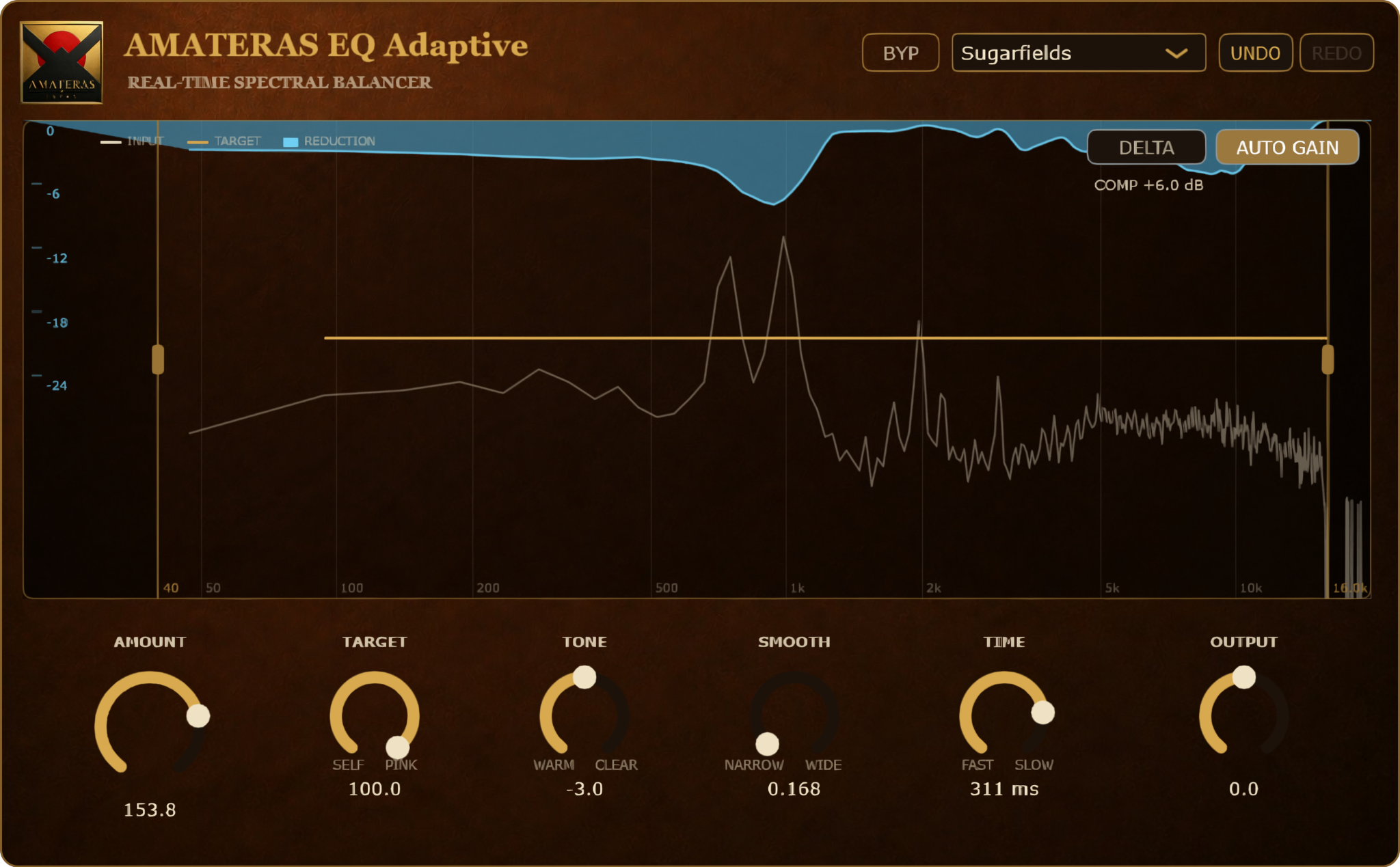
The curtain descending from the top of the display shows the frequencies being reduced and by how much. Read the amount in dB on the left-hand scale.
TARGET LINE
The line changes as you adjust TARGET and TONE, so you can see the balance you’re working toward.
DELTA
Hear only the signal being taken away. DELTA turns off automatically when you close the plugin window.
05 / 7 PRESETS
EQ Adaptive opens with Master Balance. Choose a preset for the task, then adjust to taste.
| Preset | When to use it |
|---|---|
| Master Balance | A starting point for the master bus or stereo mix. Brings the overall balance toward a pink-noise reference. |
| Light Touch | A very gentle finish for an already balanced mix. Aim for a change you barely notice. |
| De-Resonate | Tame specific ringing resonances while preserving the source’s tonal character. |
| Vocal Smooth | For vocal tracks and buses. Ease harshness and muddiness. |
| Inst Bus | For guitar, keyboard and other instrument buses, or AI-separated stems. |
| Drum Bus | Keep the shape of the drums while controlling excessive body resonance and boom. |
| Sugarfields | The developer’s own mastering setting. Refines the overall balance against a pink-noise reference. |
06 / CONTROLS
Once a preset gives you a direction, adjust AMOUNT, TARGET and TONE to taste. Change the response time and processing range when needed.
| Control | What it does |
|---|---|
| AMOUNT | Processing strength, from 0–200%. 100% is the standard setting; use a gentle amount for everyday finishing. Turn it up toward 200% for a more pronounced effect. |
| TARGET | Choose a reference between the source’s own shape (SELF) and the slope of pink noise (PINK). |
| TONE | Adjust the PINK reference. WARM reduces more high-frequency energy for a calmer sound; CLEAR reduces more low-frequency energy for a cleaner balance. Neither setting boosts a band. |
| SMOOTH | How broadly it looks at the spectrum. NARROW targets fine resonances; WIDE gently balances broader areas. |
| TIME | Response timing, displayed as a recovery time of 50–500 ms. FAST responds quickly to brief peaks; SLOW gives a gentler, more relaxed response. Think of it like a compressor’s release. |
| OUTPUT | Final output level. |
| RANGE | Set the processing range with the two handles on the display. No frequency-specific correction is applied outside it. Double-click to reset to 40 Hz–16 kHz. |
| DELTA | Listen only to the removed signal. Turns off automatically when you close the plugin window. |
| AUTO GAIN | Compensates for the level lost through reduction. On by default. |
| BYP | Compare with the unprocessed signal while keeping DAW latency compensation active. |
| UNDO / REDO | Undo or redo up to 20 steps. |
07 / THREE WAYS TO EQ
Shape the tone yourself with EQ Pure.
Analyze once and establish a balance with EQ Fix.
Keep adjusting as the music changes with EQ Adaptive.
Swipe to compare →
| Compare | 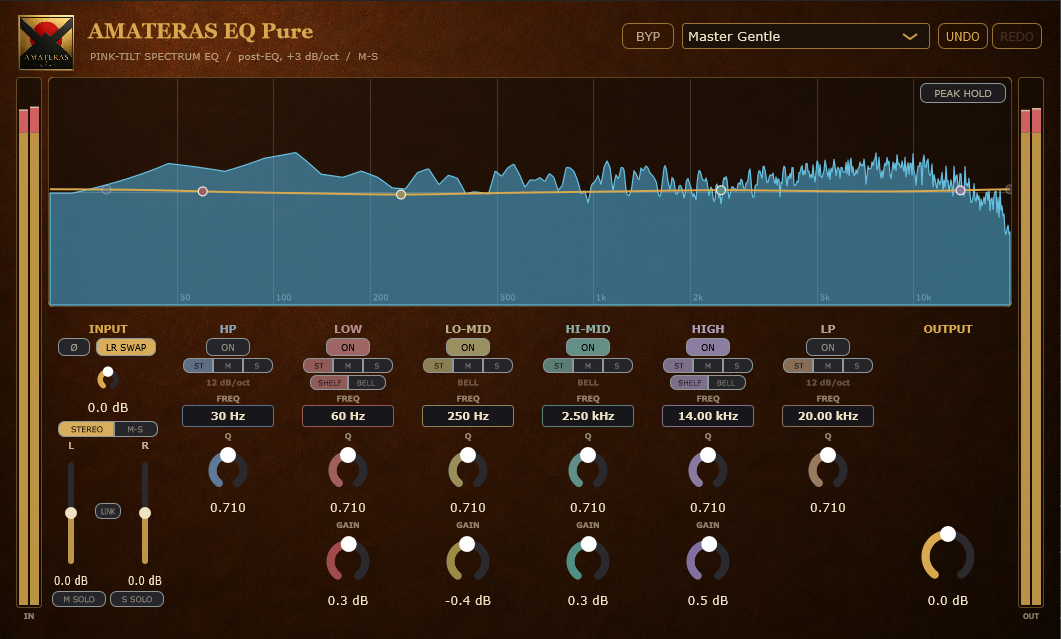 EQ Pure ↗ EQ Pure ↗ | 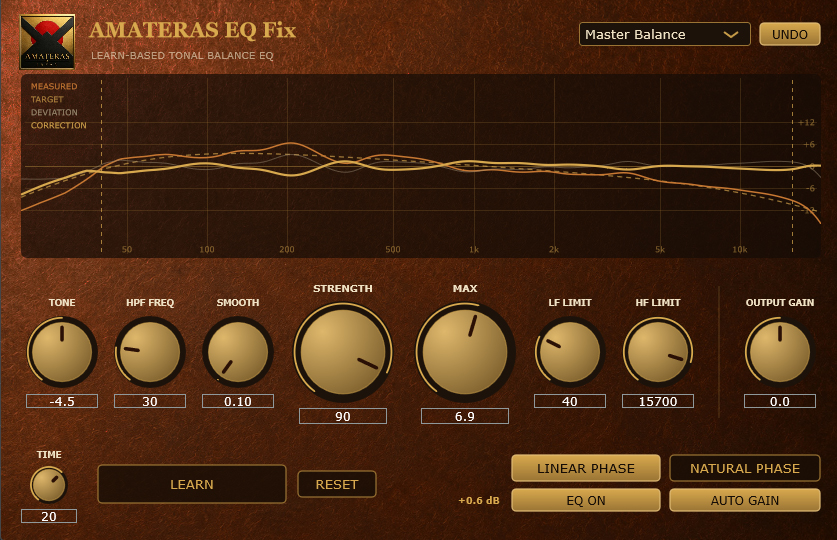 EQ Fix ↗ EQ Fix ↗ | EQ Adaptive |
|---|---|---|---|
| Who shapes the curve? | Your ears and hands | Automatic analysis with LEARN | Automatic, continuous adjustment |
| How does it move? | Stays where you set it | Stays fixed after analysis | Keeps moving with the music |
| Best for | Shaping the tone you want | Establishing a balanced starting point | Taming excess as the arrangement changes |
Establish the balance with EQ Fix, shape your tone with EQ Pure, then let EQ Adaptive tame changing buildups for the finishing touch. Each has a different job in the chain.
08 / BEFORE YOU USE IT
Know what to expect before you buy.
The better balanced your source, the smaller the change. Use DELTA to hear exactly what’s being removed.
Start on the master or a bus for overall balancing. For a specific vocal or instrument resonance, try a setting closer to SELF.
Using PINK-heavy settings on many individual tracks can make their tonal characters too similar.
Compensation raises the overall level after cuts, so highs may become relatively more prominent. To preserve the song’s level dynamics more strictly, turn AUTO GAIN off and match the level with OUTPUT.
Latency is approximately 43 ms at 48 kHz. Your DAW compensates during playback, but this makes the plugin unsuitable for monitoring while recording.
Disabling the plugin in your DAW may change latency compensation and shift the timing. The plugin’s own BYP keeps compensation active for a consistent comparison.
09 / NAGAOKA, JAPAN
AMATERAS plugins are made by an engineer with more than 30 years of mixing and mastering experience, initially to serve his own work.
Finishing hundreds of songs a year, alongside designing and manufacturing transformer-based audio hardware, informs every design.
EQ Adaptive grew out of the same need to finish a song independently. The Sugarfields preset contains the developer’s actual mastering settings.
10 / SPECIFICATIONS & SUPPORT
AMATERAS EQ ADAPTIVE
Harsh resonances. Buildups that appear as the arrangement changes. Let EQ Adaptive keep finding and reducing them, from the beginning of the song to the end.
Even when your ears get tired, or too familiar with the mix, your second pair keeps listening.
VST3 / AU · Windows / macOS
OTHER AMATERAS PLUGINS
AMATERAS
AMATERAS
AMATERAS
AMATERAS
AMATERAS
AMATERAS
AMATERAS
AMATERAS